
Your DNS, at a glance.
Live Technitium DNS stats on a VoCore screen, with retry-storm alerts and a real DNS health check. No browser tab. No subscription.
Features
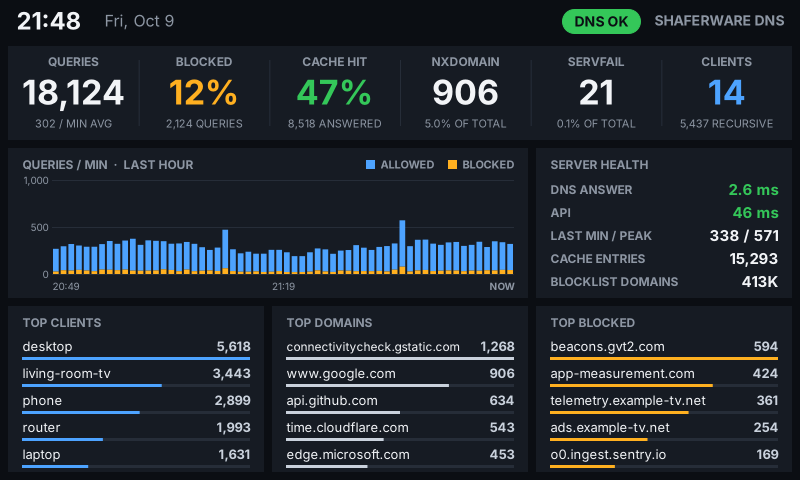
Live stats
Queries, blocked %, cache hit %, NXDOMAIN, SERVFAIL and client count from your Technitium server, refreshed every 10 seconds.
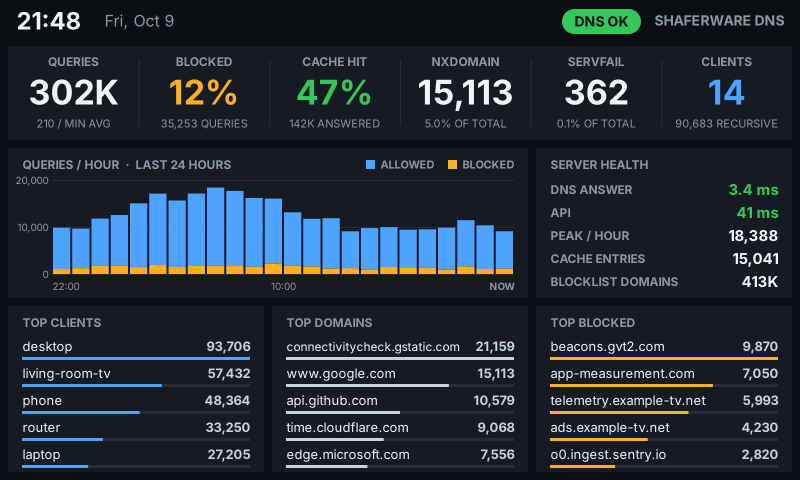
Query chart
Queries per minute for the last hour, with blocked queries in amber. Switch to per hour for the last 24 hours in settings.ini.
Top lists
Your top clients, top domains and top blocked domains, each with a bar so the busiest stand out.
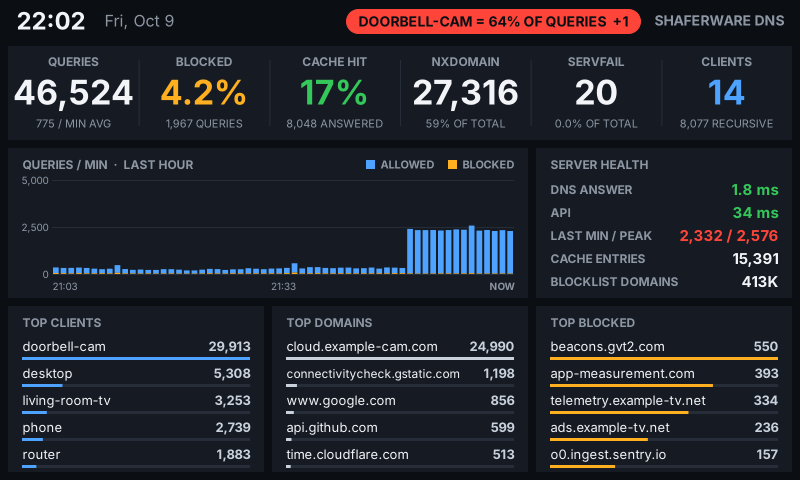
Retry-storm alerts
When one device makes most of your DNS traffic, like a camera stuck in a loop, the status pill turns amber, then red, and names it.
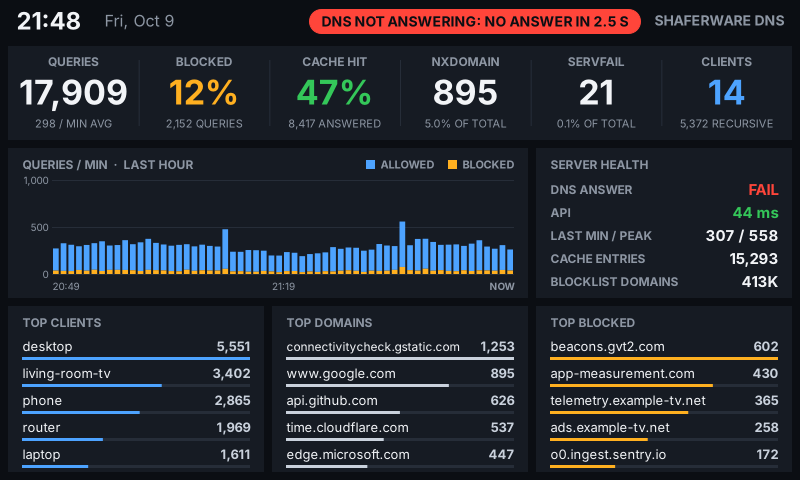
Health check
Sends a real DNS query every 30 seconds and times the answer, and times the API too. If DNS stops answering, you see it right away.
Friendly names
Shows names from your PTR records, or your own labels from settings.ini, instead of bare IP addresses.
On the screen
Security
Read-only token
Uses a Technitium user that can only view the dashboard. It can't change any settings.
Encrypted at rest
The API token is encrypted with Windows DPAPI the first time the app starts, so only your Windows account can read it.
No admin rights
Runs as a normal user from the system tray.
How it works
In Technitium, add a read-only “vocore” user and create an API token for it (see TECHNITIUM SETUP below).
Unzip DNS Monitor, open
settings.ini, and enter your server address and the token.Run
ShaferWareDnsMonitor.exe. Your dashboard appears on the VoCore screen within a few seconds.Optional: run
install.batto start DNS Monitor with Windows.
Technitium setup
DNS Monitor reads your server through a read-only Technitium user and its API token. Follow these 12 steps in order.
Create the read-only user
- Log in to the Technitium web console as an administrator.
- Go to Administration > Users and click Add User.
- Username:
vocore. Use a long, random password; you only need it to create the token. - Leave Member Of empty. Don't add it to Administrators, DNS Administrators or DHCP Administrators. (Member Of only accepts group names; typing a permission like "View" there gives "No such group exists".)
- Save.
Give it dashboard access only
- Go to Administration > Permissions, find the Dashboard row and click edit.
- Under User Permissions, add
vocoreand tick View only. Leave Modify and Delete unticked. Save.
Create the API token
- Log out, then log in as
vocore. - Click
vocorein the top right and choose Create API Token. Name it "VoCore DNS Monitor". - Copy the token right away. It's 64 letters and numbers and is only shown once. Use the API token, not the session code you get from a normal login, which stops working when you log out.
Check it and add it to DNS Monitor
- Test it in a browser on the PC that runs DNS Monitor:
http://YOUR-SERVER:5380/api/dashboard/stats/get?token=YOUR-TOKENYou should see a page of numbers ending in"status":"ok".invalid-tokenmeans the token is wrong or was deleted; check Administration > Sessions for an API Token row for vocore. - Paste the token after
api_token =insettings.iniand setapi_url =to your server. DNS Monitor encrypts the token the first time it starts.
Tips
- The API token never expires. Changing the vocore password later doesn't break it.
- If your network has firewall zones, allow this PC to reach the Technitium web console port (5380, or 53443 for HTTPS).
- For HTTPS, set
api_url = https://YOUR-SERVER:53443so the token never crosses your network in plain text.
Requirements
- Windows 10 or 11, 64-bit (.NET Framework 4.7.2, which is built into Windows)
- VoCore USB screen, 800x480 (tested on the 5" V7B panel)
- The VoCore USB driver (WinUSB/libusb). If SimHub or SysDash has already driven your screen, the driver is installed.
- Technitium DNS Server with its web console reachable from this PC (tested with v15)
- Close ShaferWare SysDash and SimHub before starting DNS Monitor, because only one program can drive the screen at a time.
- Verify your download before you run it.
Download
- Version
- Version 0.1
- File
- ShaferWare-DNS-Monitor-0.1.zip
- Size
- 115 KB (115,013 bytes)
- Checksum
Credits
USB: libusb (LGPL 2.1).
Technitium, VoCore and SimHub are trademarks of their respective owners. DNS Monitor is not affiliated with any of them.